NineBoxView Pro
A 9-grid preview tool that allows type designers to preview the arrangement of a glyph alongside reference characters in real-time during the design process.
Table of Contents
- Installation
- Quick Start
- Core Concept: Three-Layer Preview System
- Interface Overview
- Grid Position Definition
- Features
Installation
Install via Plugin Manager
Tip
We recommend installing via Plugin Manager for automatic updates.
- In Glyphs, open Window > Plugin Manager
- Search for "NineBoxView Pro"
- Click "Install"
Manual Installation
- Download the plugin file (.glyphsPlugin)
- Double-click the file to install
- Restart Glyphs
Quick Start
- Open the plugin: Select View > NineBoxView Pro
- Enter reference glyphs: Click the button in the toolbar to open the Reference
- View the preview: The grid displays the current editing glyph (center) with surrounding reference characters
Get Started in 30 Seconds
1. Open the 9-grid window
2. Enter reference glyphs: 永東國酬
3. Click inside the grid area to randomly arrange the reference glyphs
4. Continue editing your glyph and preview the arrangement in real-time
Tip
Hold Shift to enter Solo mode, temporarily hiding reference and locked glyphs.
Core Concept: Three-Layer Preview System
NineBoxView Pro uses a three-layer stacking design, allowing you to observe how a glyph performs in different contexts simultaneously:
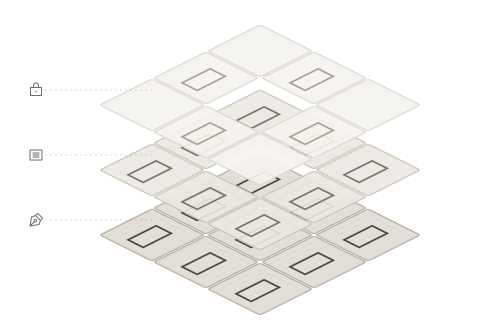
Editing Glyph (Bottom Layer)
The glyph currently being edited, synchronized in real-time across all cells of the grid. This is your work focus.
Reference Glyphs (Middle Layer)
Randomly arranged common characters that help you quickly identify problematic pairings. Click inside the grid to reshuffle.
Locked Glyphs (Top Layer)
Characters fixed at designated positions, establishing a stable comparison baseline. Settings are saved with the file.
Note
The three layers are stacked from bottom to top. Locked glyphs take priority over reference glyphs and will cover the reference glyph at that position.
Drag Relationships
Drag operations between the three layers have different restrictions:
| Layer | Can Receive Drag | Can Output Drag | Description |
|---|---|---|---|
| Editing Glyph | ✗ | ✓ | Center cell can only output, cannot be a drop target |
| Reference Glyphs | ✓ (visible layer) | ✓ | Can swap with visible top-layer glyphs |
| Locked Glyphs | ✓ | ✓ | Can be added from editing or reference layers via ⌘ + drag |
Tip
To fix the current editing glyph at a specific position, use ⌘ + drag from the center cell to the target position to create a locked glyph.
Interface Overview
Main Window
The 9-grid main window is a floating panel that contains:
- Grid display area: A 3×3 glyph preview grid
- Toolbar: Action buttons at the bottom
- Title bar menu: The Menu button at the top right
Toolbar Buttons
| Button | Function | Description |
|---|---|---|
| / | Theme toggle | Switch between light/dark mode |
| Grid | Toggle grid lines (Option + click to open grid settings) | |
| Slider | Blur intensity | Adjust blur level for the entire grid window to check overall gray distribution |
| Presets | Open/close the presets panel | |
| Locked | Open/close the Locked Glyph Panel | |
| Reference | Open/close the reference input panel | |
| Menu | Open the info menu |
Info Menu
Click the button in the title bar to open:
| Item | Description |
|---|---|
| About NineBoxView Pro… | Open About |
| Purchase… | Purchase license (shown during trial) |
| Enter License… | Enter license key (shown during trial) |
| User Guide | Open user guide (this document) |
| Website | Go to official website |
| Feedback… | Submit feedback (GitHub Issues) |
| Share Your Experience… | Share your experience on social media |
| Contact Us… | Contact developer (email) |
Note
During the trial period, the menu will show remaining days and purchase/license entry options.
Context Menu
Right-click inside the grid area to open the context menu:
| Item | Description |
|---|---|
| Insert at Cursor | Insert grid content at cursor position in Glyphs edit view |
| Open in New Tab | Open grid content in a new tab |
| Show Toolbar / Hide Toolbar | Toggle toolbar visibility |
| Show Reference Panel / Hide Reference Panel | Toggle Reference visibility |
| Show Locked Panel / Hide Locked Panel | Toggle Locked visibility |
| Show Presets Panel / Hide Presets Panel | Toggle Presets visibility |
| Light Mode / Dark Mode | Toggle theme mode |
| Show Grid Lines / Hide Grid Lines | Toggle grid lines |
| Grid Style | Grid line style submenu (Cross Grid / Diagonal Grid / Division Grid) |
| Show Bounding Box / Hide Bounding Box | Toggle Bounding Box display |
| Grid Settings… | Open grid settings panel |
Grid Position Definition
The grid positions are numbered as follows:
| 6 | 7 | 8 |  ← Top
| 3 | 4 | 5 |  ← Center
| 0 | 1 | 2 |  ← Bottom
- Position 4: Center cell, displays the current editing glyph, cannot be locked
- Other positions: Can hold reference or locked glyphs
Features
Preview Layer Features
Reference Feature
Reference glyphs are the "middle layer" of the three-layer preview system, positioned above the editing glyph.
Enter a set of reference characters to display around the grid, helping you observe the visual effect of a glyph in different contexts.
Use cases:
- Observe glyph pairing with characters of different stroke densities
- Check character spacing and visual balance
- Simulate real typesetting scenarios
Locked Feature
Locked glyphs are the "top layer" of the three-layer preview system, taking priority over reference glyphs.
Fix a specific glyph at a designated position to establish a stable comparison baseline.
Use cases:
- Fix a standard character as a design reference
- Create glyph pairing comparisons
- Track design consistency
Productivity Tools
Presets Feature
Save commonly used reference glyph combinations or locked configurations for quick switching between different testing scenarios.
Use cases:
- Save test glyph sets for different languages
- Save project-specific reference configurations
- Share settings across different font files